


How to make sure that your Loquiz game looks like your own, with your brand, or your client’s brand?
In this article, I will show you how you can customize your game so that there’s specific branding on it.
Why would you need to brand your game?
When we sell a game to a museum or a corporation, they will make sure that their brand is associated with the content of the game.
If the final player thinks that the game was developed by them directly, then you win!

On the contrary, if you have the name of the tool on the different visuals of your game, this might be somewhat unnecessary from the player’s perspective. Yet, I know that plenty of tools require the game provider to keep their logo.
So now, let’s see how we can brand your game. In other terms, let us see if we can customize the visual appearance to meet your client’s needs.
How to brand our Loquiz game
Loquiz has different features to customize and brand your games. So here they are:
The game logo
First of all, the most important: The game logo.
It will appear on the top left of the screen of your Loquiz game. By default, it shows the Loquiz logo. But you can change it from the settings.
Here, you can get more information about this feature.
So now, let’s take an example: The Missing Easter Dinner.
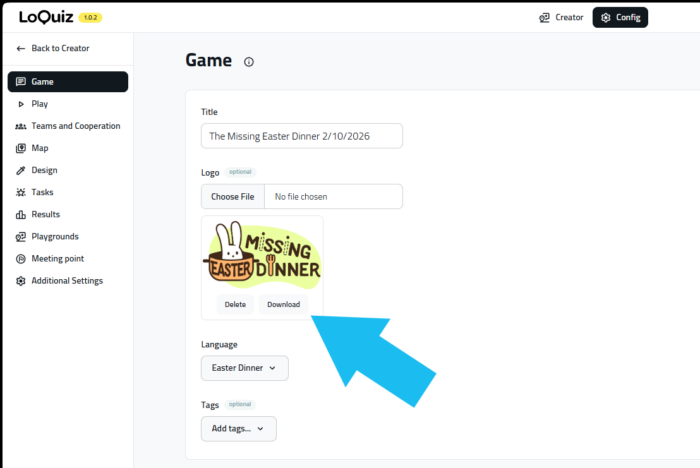
With this logo, let’s see where to add it. Go to your game’s “Config” and “Game” section. You can change the logo there:
Afterward, it looks like this from the player’s perspective.
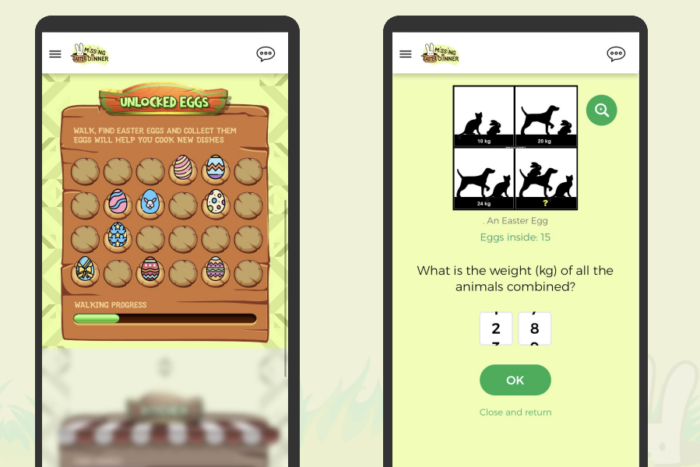
Notice the logo on the top left of the screen. Nice, isn’t it? It can be your game’s logo. Or it can be your client company’s logo. Or both.
The game colors
The logo itself is not sufficient to establish the branding. You will also need to change the colors.
What if you make a game for the Dutch State, and you need to add orange as their national color?
With Loquiz, we have your back! You can make every button in the color you wish.
Let’s take the example of Jules Verne’s game. One color is dominant: Light beige. It represents wood, as it was a more common material back in Jules Verne’s era.
Take a look at the main picture:
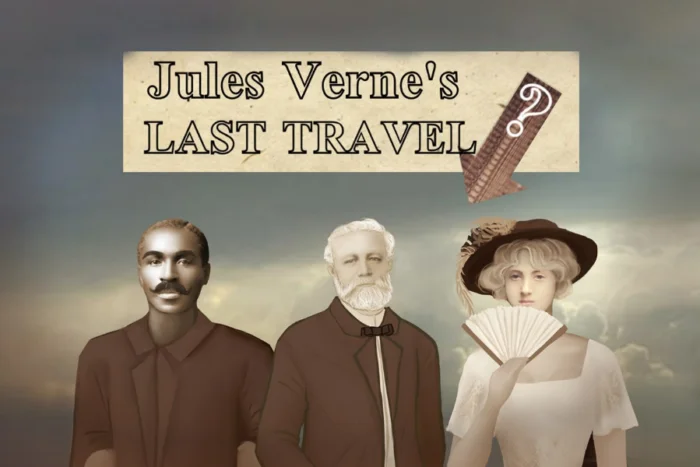
We also want to make the buttons with a similar color. To achieve this, go to “Config”, “Design” section, and you can change the button’s colors.
Make sure you untick first “Use default from account settings”!
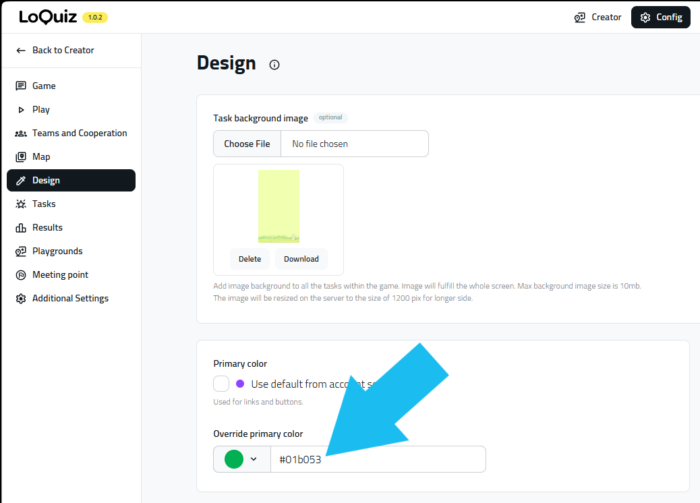
You can take a few default colors for your account. Or you can also choose your custom color.
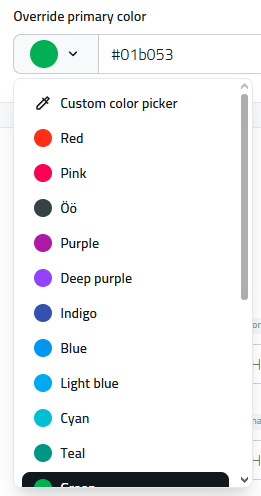
I chose my own color, using a hexadecimal code. It’s convenient when your client company provides you with the code of a precise color, related to its brand.
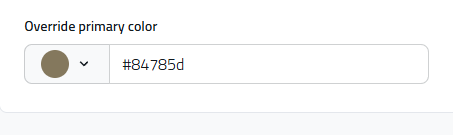
Consequently, as you can see, the button matches with the chosen colors:

The game map and its icons
If your game is outdoors, then it will look even better with branded items on the map.
I want to show you 3 elements of the map: The overlay, the icons, and the area color.
1. The overlay
Let’s take the demo adventure as an example. In this game, we have a map view with the game logo on it.
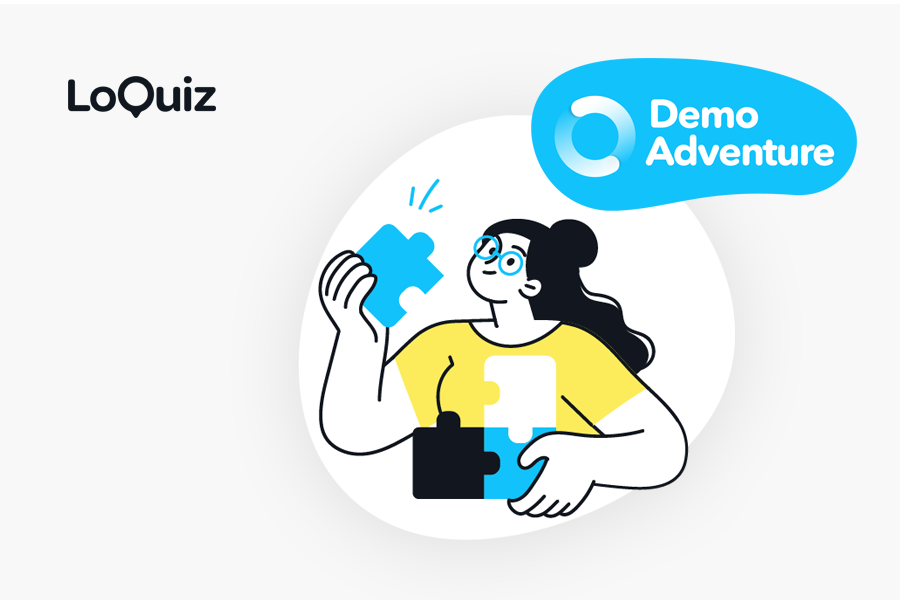
How to make the map look nice? Add the logo through the overlay panel:
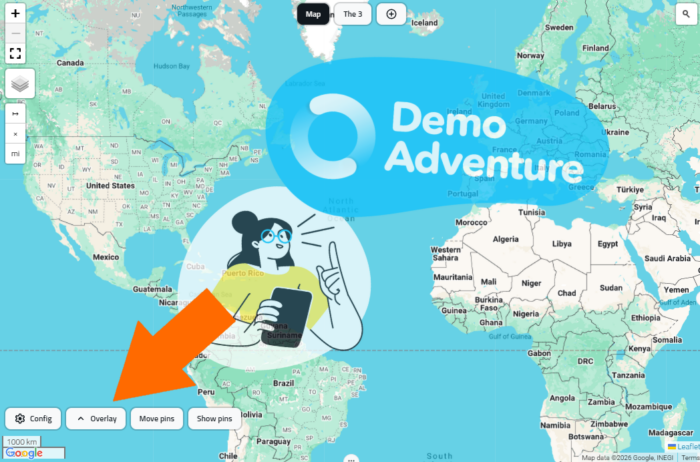
Use a .png file with transparency. Then it will appear on top of your map.
With this file, you can easily add the logo of your client’s company on your map.
2. The icons
Some of your tasks may appear on your map or your playground. Then, how should they look?
Go to the task’s settings. From the “settings” tab, you’ll be able to edit your task’s pins.
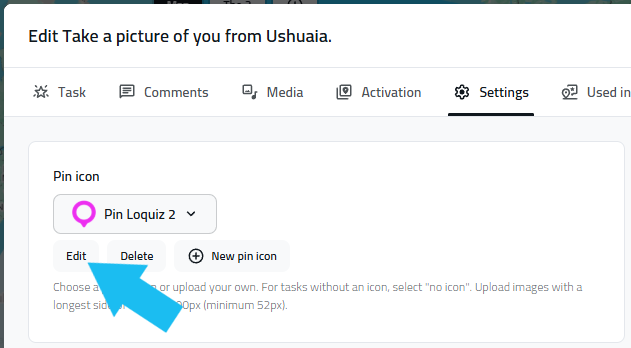
You can change the pin icon into your own .png file that can be your client’s company logo. In our example, we have a car icon from Freepik.
3. The area color
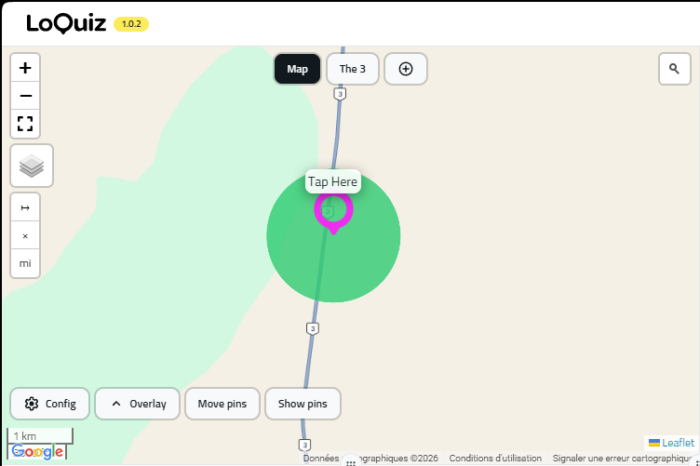
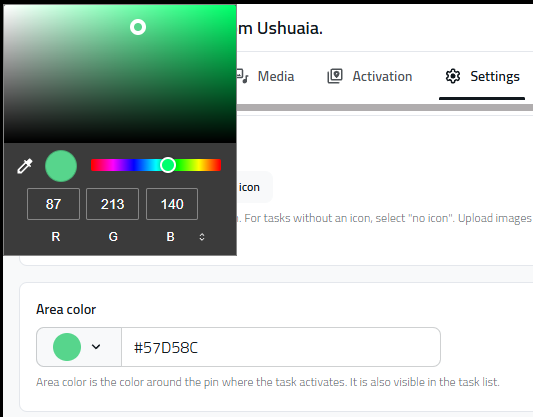
Furthermore, you can also change the color of the activation area. The area will open once the GPS location matches. IT doesn’t really apply in our Demo adventure game since you can still open tasks by tapping on them. But let’s just see how to edit the color!
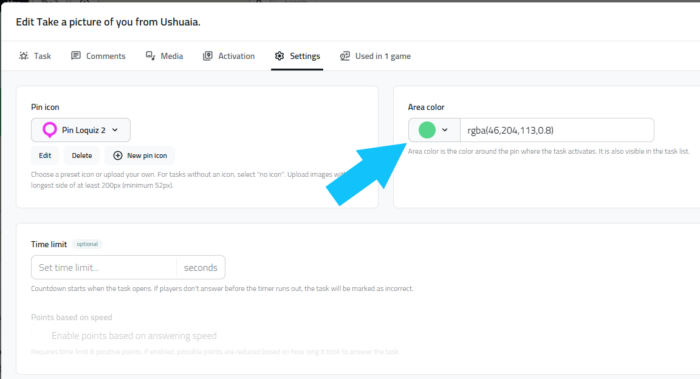
As for the button color, you can choose a color or pick one from the color picker!
Branding your game, a final word
To conclude, I can say that Loquiz has a few features that allow you to brand your game. Furthermore, there are other customization features that allow you an even deeper branding process:
- The playground: You can use pictures instead of a map or a list. On these pictures, you can indeed put any of your brand’s designs. You can try it here!
- The audio: A branding may also be expressed by sounds. Use audio to add sound effects and songs that are related to your brand!
- Augmented photo: Add your client’s brand to a photo taken by the players!
In some gamification apps, branding can be limiting or expensive. However, in Loquiz, the sky is the limit for you to brand your game! And you should get all these features even in our normal plan, “pay-per-use”.
If you want to know more about this, then feel free to book a meeting with me! I would be delighted to discuss all of this with you!
Related stories
Spring is coming, warmer and longer days are ahead. It’s a nice time to plan for an outdoor team-building game...

You’re building a self-guided tour, and you’d like to increase the immersion? The music is one of the important aspects...
With your Loquiz game, you can add a list to simply display your tasks. It’s recommended for indoor games or...
Start free trial to bring your ideas to life
Sign up and create games, tours, team events and educational content that captures peoples' attention
Start from the scratch or use templates to kickstart!