


Did you create a successful Loquiz game? First of all, we encourage you to convert it into a template. Once you have it, you can easily share it with other accounts. You could sell your game concepts or obtain other successful ones!
This feature is available on all paid Loquiz packages.
1. Create a template from your game
Skip to the next step if you already own a template.
If you want to share a game, you’ll need to convert it into a template. And we encourage you to do it if the game is successful.
First of all, go to the game’s settings:
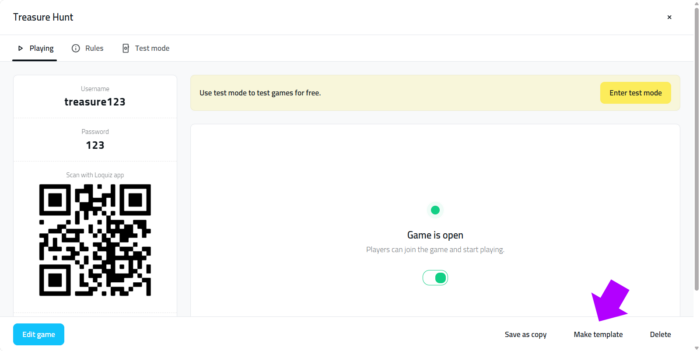
You’ll find the template on this page once you’ve followed all the steps to publish your game:
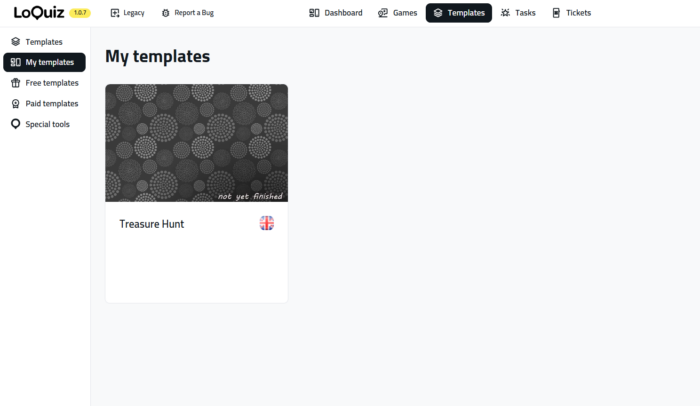
2. Share your template
You can transfer your template to another Loquiz user. To do so, first ask about their account ID. You can find it in the top right menu > bottom of the pop-up window. Here you can find more detailed instructions for obtaining this ID.
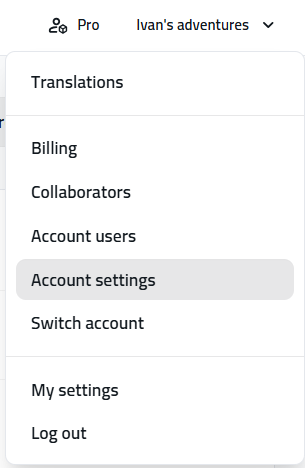
Then stay on the “Company” tab, you’ll find the account ID:
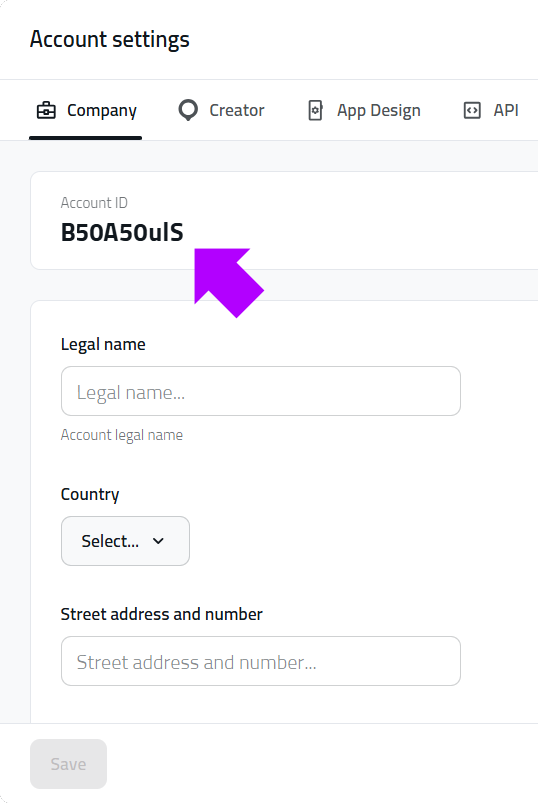
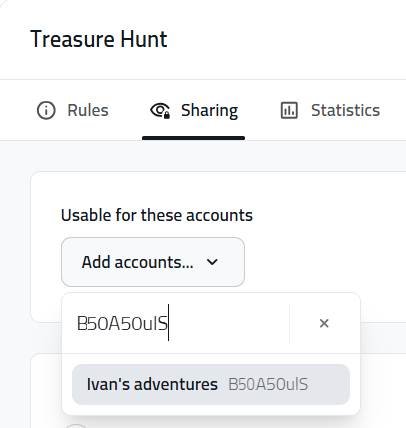
Once you have their ID, go to the Template settings, Sharing tab, paste the ID, and select the account of the target account:
You have the possibility to lock or unlock the shared template.
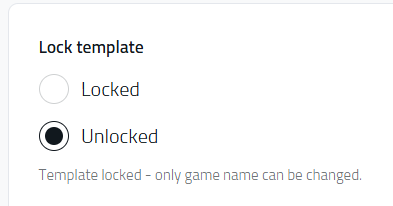
If you select “Locked”, the user won’t be able to change anything (including the task). Use it if you plan on editing the game template yourself, and not the target user. It’s useful if your game contains sensitive data or if you don’t want your partner to see the game logic.
3. Find the shared template
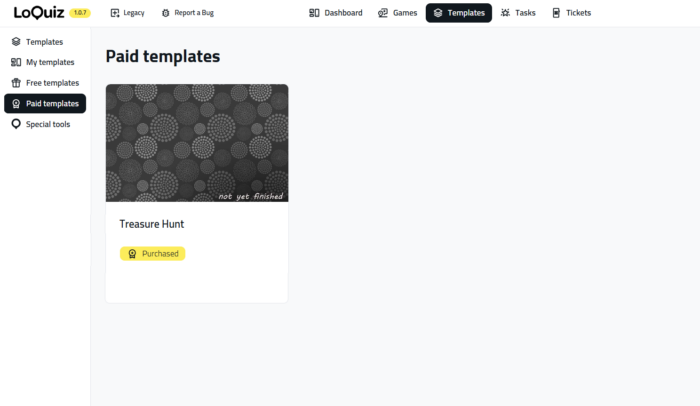
When your partner receives the game, they’ll need to visit the paid templates page. Loquiz will display all shared templates with a ‘Purchased’ tag. Please note that if you haven’t added pictures to your template, a default image will appear.
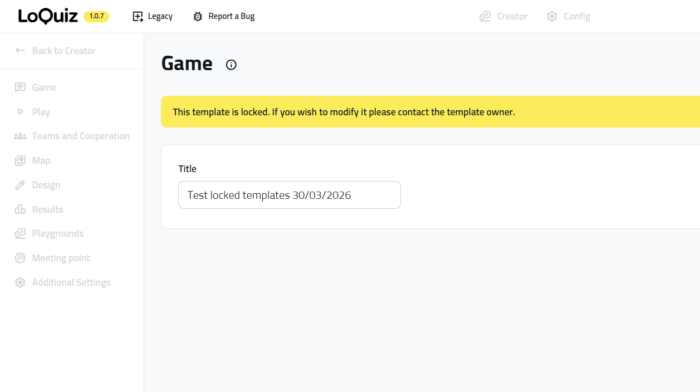
If you locked the template, then that’s how the game looks from your partner’s account:
If you have more questions about template sharing, feel free to send me a message. I’ll be delighted to help you out!
Related stories
How to set up an Halloween game now Halloween is in a week! If you need a game that’s easy...

We can sell Loquiz City games through ticketing platforms. The flow is simple: players visit your website, purchase one or...
When we offer a city game, our players expect some interaction with their surroundings. Sometimes, this is essential because the...
Start free trial to bring your ideas to life
Sign up and create games, tours, team events and educational content that captures peoples' attention
Start from the scratch or use templates to kickstart!