

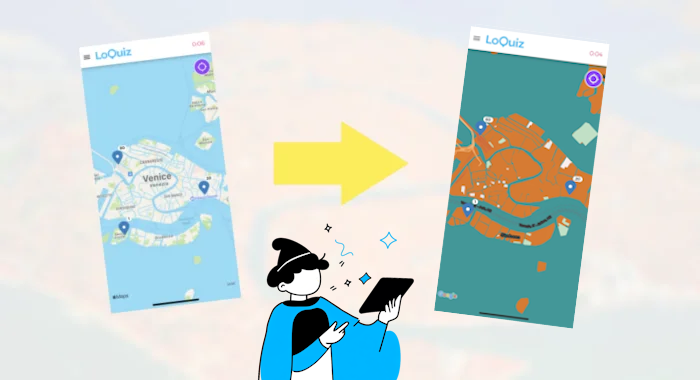
Using the Creator, we can build outdoor scavenger hunt games or tours. In these cases, we usually add a map to the game.
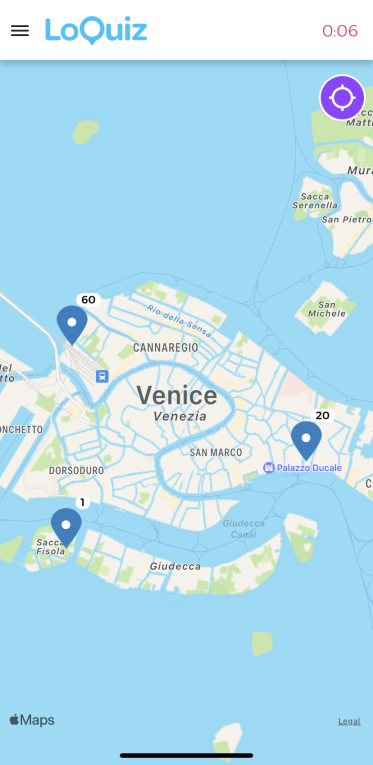
If your Loquiz game looks like this, don’t you feel it looks like Apple Maps or Google Maps? These platforms are helpful as a GPS. But they do not have high appeal when you want to gamify map use.
Gladly, Loquiz offers a feature that makes your map more customizable and cosmetic: The custom map.
With a JSON code, you can change all the colors, from the labels to the areas. Here, we’ll go through a few examples. Then you will see how to do it, step by step.
First example: A custom map of Assassin’s Creed
From your video game console, you can play Assassin’s Creed. In some of its episodes, the story takes place in Venice. What if you actually go to this historical city and take a tour to discover it?
Let’s not use dull Google Maps. Instead, we’re going to use a map with the color of this video game:
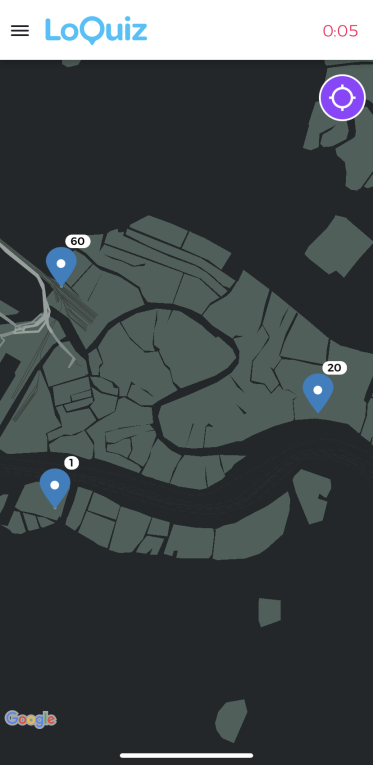
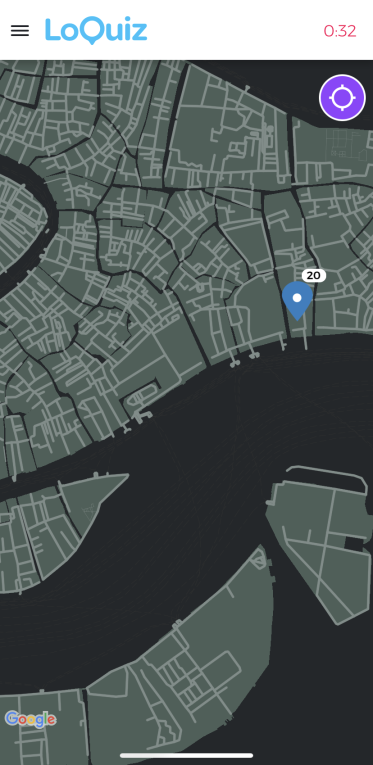
It looks better, right?
However, it might be dark. Venice is usually sunny, so it might not be suitable. Besides, you might want more labels on it. So here is the next example:
Second Example: A custom map from GEM Paris
I simply copied and pasted the code from the template GEM Paris. Now we have the same with Venice.
Check it out:
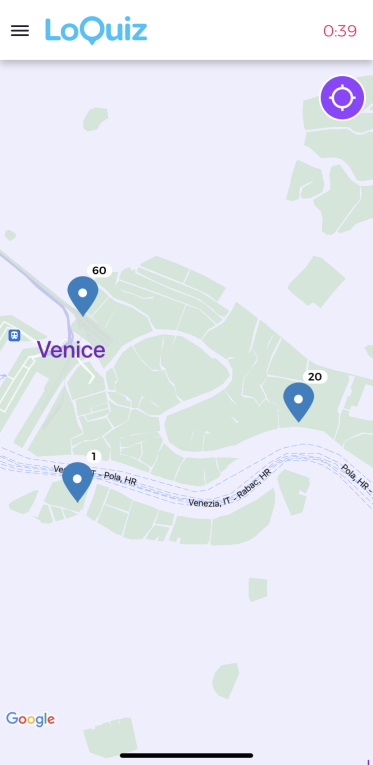
We just see the labels for the Venetian boats’ paths. But we do not see the streets. Guess what: It’s your choice! Sometimes you need a certain number of road labels; other times, you do not want to put a high amount of information on your custom maps.
So let’s see how to control all of this, alongside the colors!
Third point: Make your own Custom Map, step-by-step
To start making a custom map, I personally do not recommend the official Google website. It’s not user-friendly.
Instead, use Snazzy Maps:
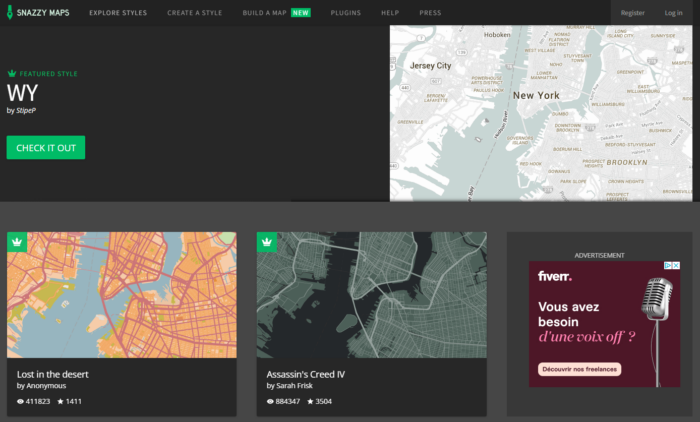
Just like Loquiz, you start with 2 choices: Create your own style or start from a Template.
I recommend you browse templates, as there are countless of them. To do so, click on the top button “Explore Styles“.
Let’s explore the Snazzy Map’s templates a.k.a. Styles!

There will be thousands of styles that you can use in your Loquiz game! However, you might not have enough time to browse all of them.
Instead, use the different search settings to let you find the best custom map.
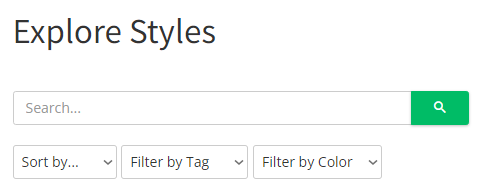
You can “Filter by Tag”:
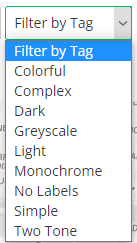
Then you can “Filter by Color”.
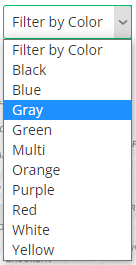
From any style template, you can edit them from the website.
Now, let’s find our desired template. In this process, it’s always necessary to have a clear idea of what we need before we research.
It’s time to choose our own Style for our Custom Map
Let’s say… We would like a game with “Two Tone”, including orange. So we can match it with the colorful roofs of Venice.
Now we have many templates quite close to what we want.
Great!
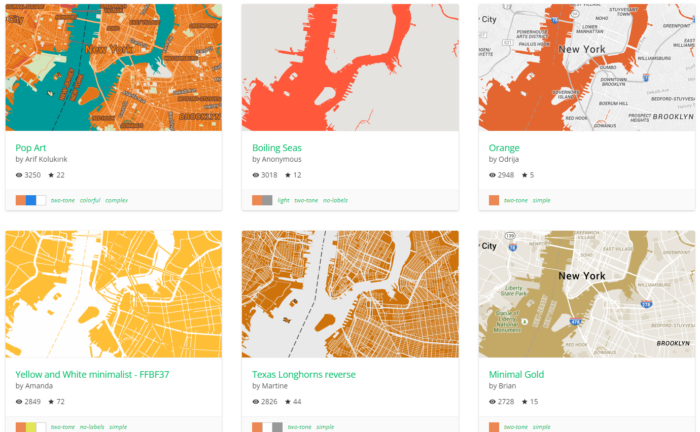
What’s your favorite one? Mine is the top left.
Let’s click on it and see what it gives.
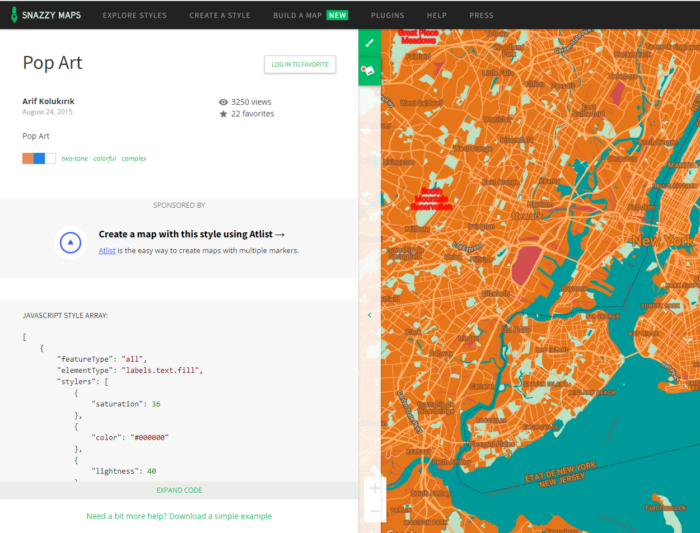
On the bottom left, you can see the code. It’s ready, so you can immediately use it for your Loquiz game.
Yet… I do not fully feel satisfied with the recurrent template.
The titles are too thick and colorful, too… “Pop”. Well, that’s the name of the template. But still, I want to remove them!
On the top-middle, hover over the green icon with the brush. Then, click on it to go to the customization page.
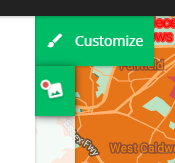
Now we’ve got a lot of options! It takes some time to play around and see how it influences the outcome. Even now, I get confused. So, give yourself a few dozen minutes on this part.
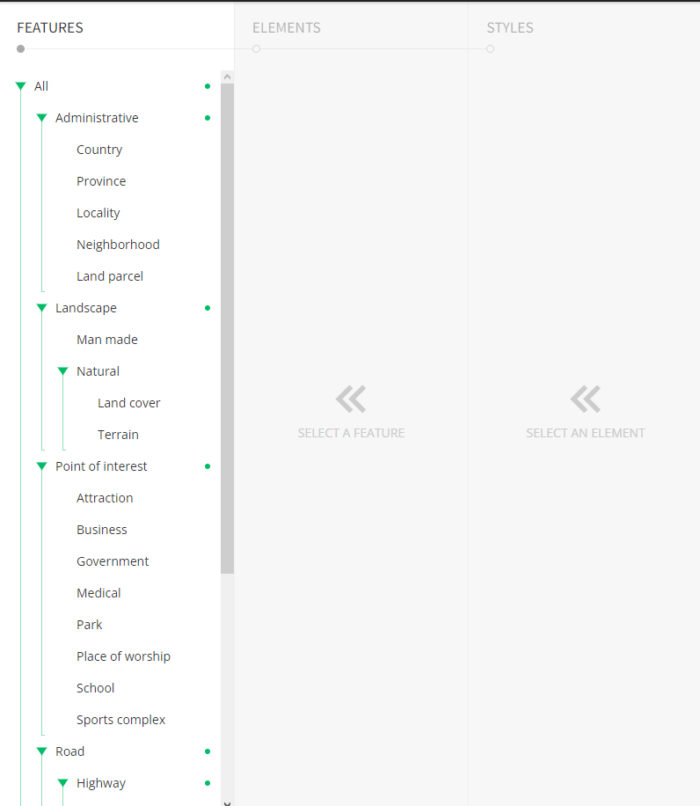
Let’s just remove the label text that is too flashy.
Here is how I proceeded:
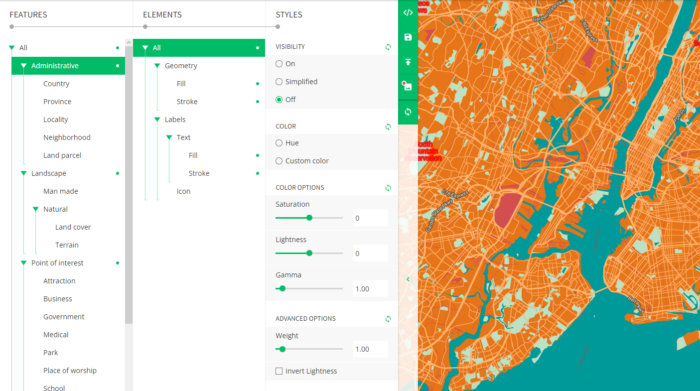
Isn’t it better now?
It updates your code in real-time. So that there’s you don’t need to understand how the JSON code works for your custom maps.
Let’s see the code part by hovering on the “</>” logo:

We’re going to put our code in Loquiz!
On the next page, you’ve got this:
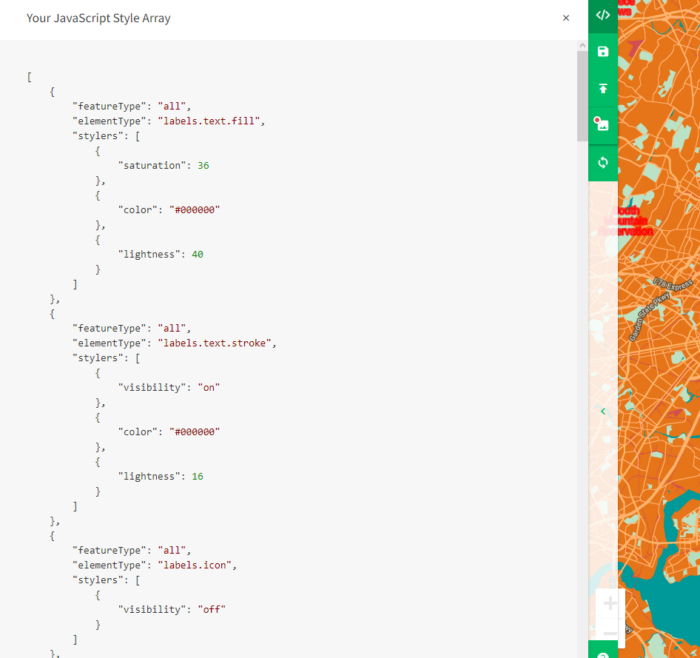
Select and copy all the code until the last square bracket character.
Don’t get afraid of the length of it; it won’t influence your Loquiz game’s performance at all.
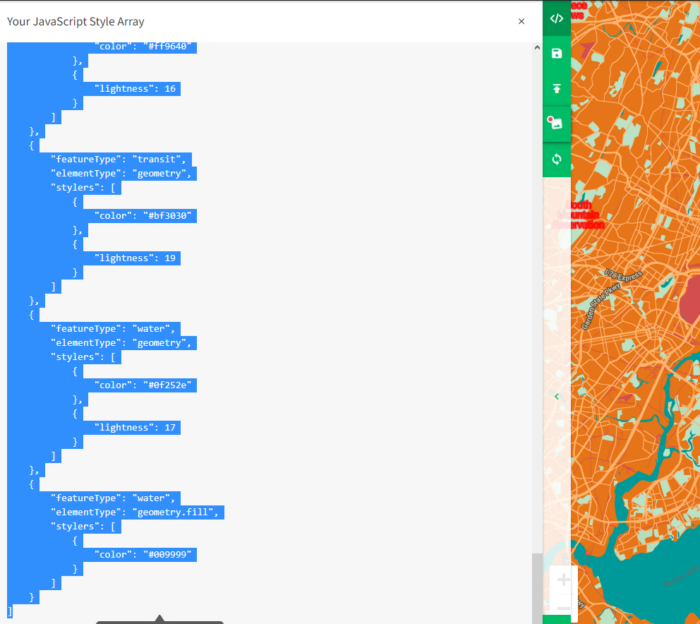
Paste the code in the configuration part of any Loquiz game.
You will find the custom map field in the Map page from the Config section.
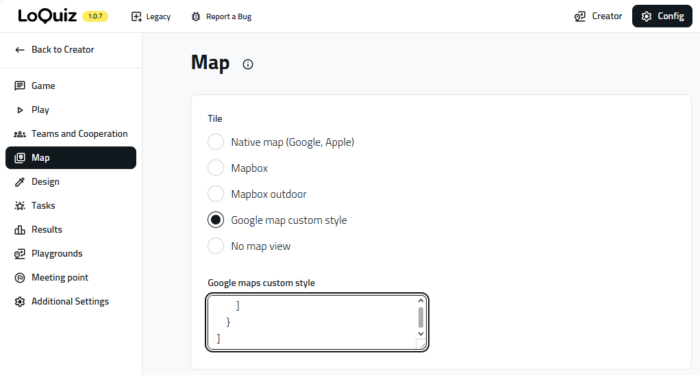
And most importantly, don’t forget to save!
Let’s try it on our Loquiz game example.
Would it look like on Snazzymap?
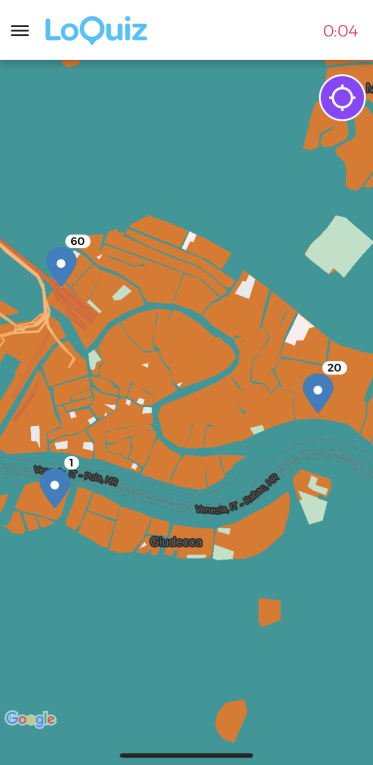
Yes, it does! It indeed looks a bit more like Venice seen from the top. However, some color choices are questionable. I would change the green spaces and the water.
But at least, your Loquiz game looks better aesthetically.
You can try to change them by yourself, following these steps!
Good luck in making your own custom Map for your own Loquiz game. If you have any questions, feel free to send me a message.
Related stories
How to set up a Halloween game now Halloween is soon! If you need a game that’s easy to set...

We can sell Loquiz City games through ticketing platforms. The flow is simple: players visit your website, purchase one or...

When we offer a city game, our players expect some interaction with their surroundings. Sometimes, this is essential because the...
Start free trial to bring your ideas to life
Sign up and create games, tours, team events and educational content that captures peoples' attention
Start from the scratch or use templates to kickstart!